Overview
Some Intuit Software Development Kit (SDK) errors indicate a data-integrity problem within the QuickBooks company file. When a QQube troubleshooting article requires a rebuild, use the QuickBooks Rebuild Data utility before performing a complete QQube clear and reload.
A Verify Result Is Not a Substitute for a Rebuild
A rebuild may be required even when Verify Data reports that QuickBooks detected no problems. When the applicable QQube error guide requires a rebuild, complete the rebuild before continuing.
Before You Begin
- Open the affected company file in QuickBooks Desktop.
- Switch QuickBooks to Single-user Mode. The Rebuild Data utility is not available in Multi-user Mode.
- Allow enough time for QuickBooks to create a backup and complete the rebuild.
- If the company uses QuickBooks Desktop Assisted Payroll, contact Intuit before rebuilding the company file.
Rebuild the QuickBooks Company File
1. Close Open QuickBooks Windows
In QuickBooks, select Window > Close All.
2. Start the Rebuild
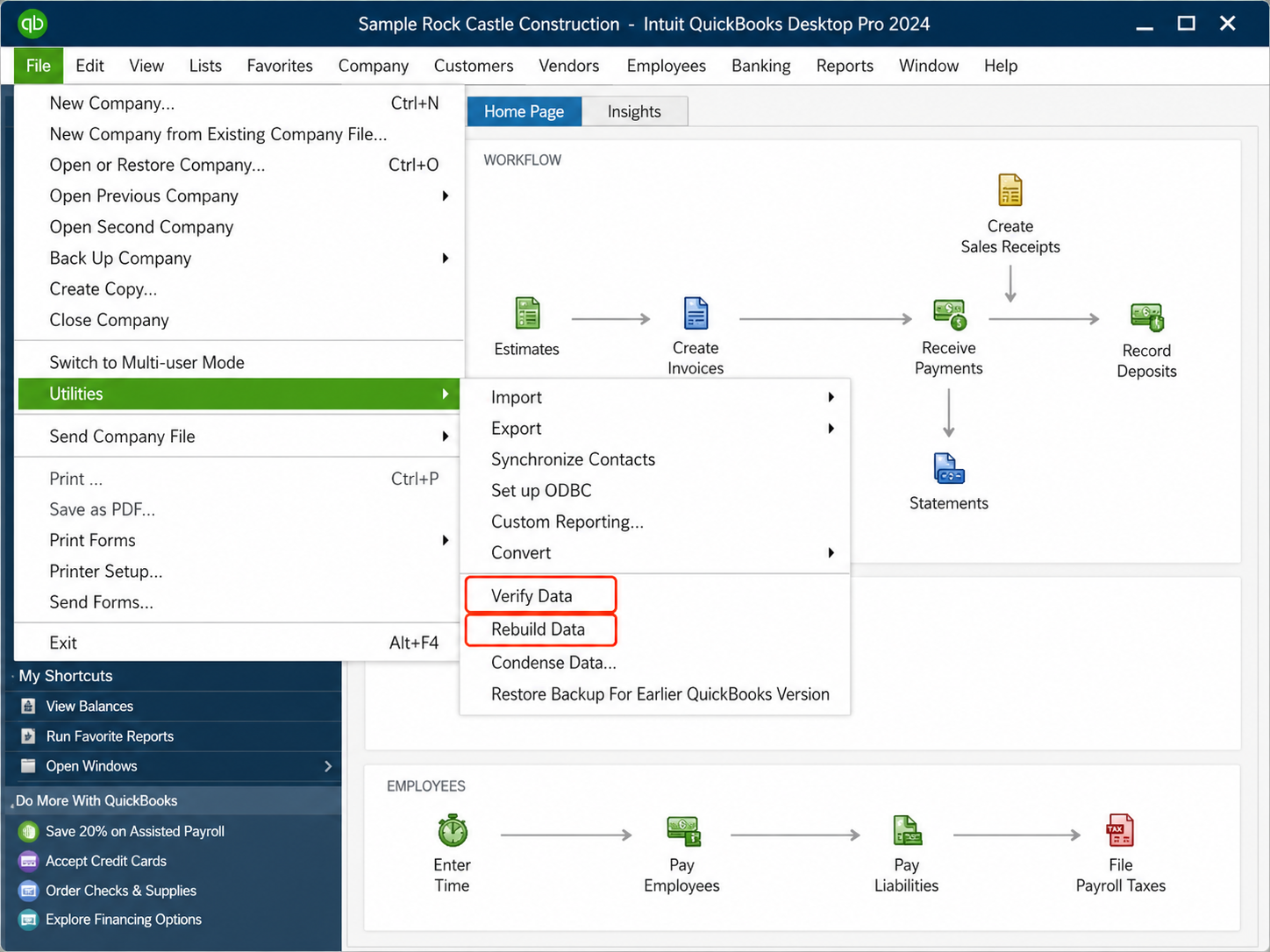
Select File > Utilities > Rebuild Data.
3. Create the Required Backup
QuickBooks requires a company-file backup before the rebuild begins. Select OK, choose a backup location, and save the backup under a new filename. Do not overwrite an existing backup.
4. Allow the Rebuild to Finish
Wait until QuickBooks displays the Rebuild has completed message, then select OK.
QuickBooks may temporarily appear unresponsive during the rebuild. When the mouse pointer still moves, allow the process to continue.
Verify the Rebuilt Company File
- Select Window > Close All.
- Select File > Utilities > Verify Data.
- Review the result displayed by QuickBooks.
| Verify Result | Required Action |
|---|---|
| QuickBooks detected no problems with your data | Continue with the complete QQube clear and reload. |
| QuickBooks reports another error or remaining damage | Resolve the remaining QuickBooks issue before reloading QQube. Follow the instructions displayed by QuickBooks or contact Intuit Support. |
Clear and Reload the QQube Database
A QuickBooks rebuild can change internal transaction and list information. The existing QQube database must therefore be cleared and loaded again from the rebuilt company file.
Both reload options are required
Select both Run All and Clear all data on synch start before starting the synchronization.
- Open the QQube Configuration Tool.
- Select Run All.
- Select Clear all data on synch start.
- Start the synchronization and allow it to finish without interruption.
Review When to Clear the Database and Reload for the complete QQube procedure.
Expected Result
The QuickBooks rebuild completes, Verify Data reports no unresolved company-file problem, and the complete QQube clear and reload finishes without the original Intuit SDK error.
If the Error Returns
Return to the QQube article for the specific Intuit SDK error. That article contains the additional diagnostic files and escalation steps required for that error.
Intuit Reference
For Intuit's current instructions, review Verify and rebuild data in QuickBooks Desktop.
Was this article helpful?
That’s Great!
Thank you for your feedback
Sorry! We couldn't be helpful
Thank you for your feedback
Feedback sent
We appreciate your effort and will try to fix the article