Overview
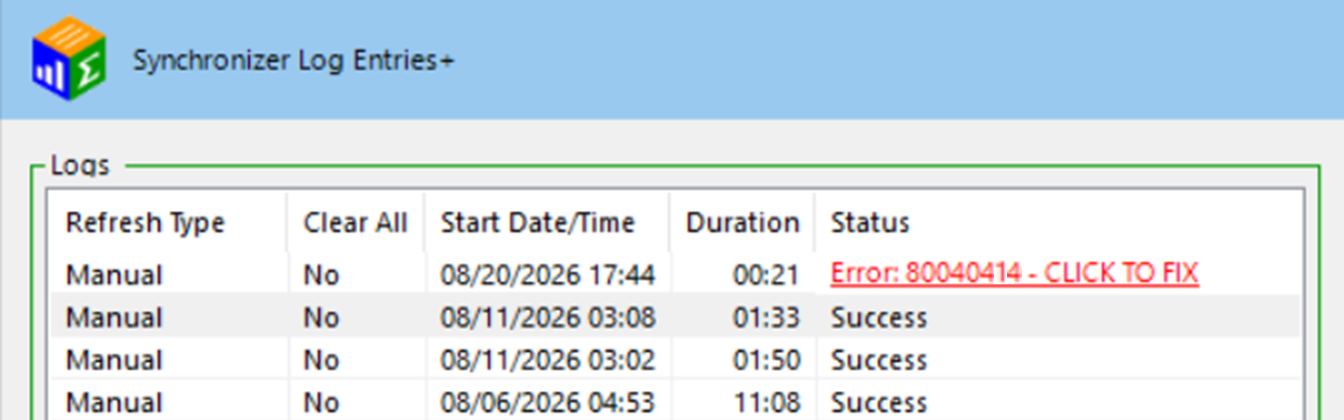
In the QQube Configuration Tool, the synchronization log list may display a red entry similar to Error: 80040414 - CLICK TO FIX. Select that red status link to open this guide.
Resolve every failed entry
A later synchronization that reports Success does not mean this earlier error corrected itself. The failed entry must still be reviewed and resolved.
The detailed synchronization log for this entry contains a message similar to the following:
Detailed synchronization log message
<<<<<<<<<<<<<<<<<<<<<< 10/15/2027 06:44:57 PM >>>>>>>>>>>>>>>>>>>>>>
Error Code: 80040414
A modal dialog box is showing in the QuickBooks user interface. Your application cannot access QuickBooks until the user dismisses the dialog box.
<<<<<<<<<<<<<<<<<<<<<<<<<<<<<<<<<<<<<<<<<<<<<<<<<<<<<<<<<<<<<<
What the Error Means
Error 80040414 comes directly from the Intuit Software Development Kit. QuickBooks has displayed a dialog that requires user action. Until that dialog is closed or completed, QQube and other third-party applications cannot communicate with the company file.
In a Multi-User implementation, the dialog appears in the dedicated Windows synchronization session where QQube was installed.
Resolution
Start in the synchronization session
Log in to the Windows session where QQube synchronization runs. Start the synchronization and watch QuickBooks for the dialog that appears. Close or complete that dialog before trying the synchronization again.
In a Multi-User implementation, perform this work under the dedicated Windows synchronization user where QQube was installed.
1. QuickBooks Advertisement or Promotion
Close the advertisement or promotion that is waiting for a response.
You may also disable QuickBooks product and service popups by following Intuit's instructions for stopping QuickBooks popups.
2. Internet Security Warning
Close the warning and correct the applicable Windows or Internet security settings.

Review Intuit's Internet security troubleshooting article.
3. Intuit Account Prompt
Complete the required Intuit account setup for the QuickBooks company file used by QQube.
- Assign the Intuit account the Secondary admin role.
- Use a unique Intuit account for each QuickBooks company file.
- Use a different email address for each company file.

Review Create Connection Users.
4. QuickBooks Update Prompt
Apply the required QuickBooks update and complete any prompts that require user action.

In a QQube server implementation, leaving QuickBooks open to the No Company Open window can prevent an update prompt from blocking an automated company-file login.
5. Modify Report Prompt
For QQube Single-User, close the Modify Report dialog.

For a QQube Multi-User server installation, log in as the QuickBooks user assigned to QQube and clear the applicable report preference shown below.

If No Dialog Appears
If Error 80040414 returns but no blocking dialog appears while you watch the synchronization, verify that you are looking at the Windows session where QQube actually runs.
In a Multi-User environment, the Synchronizer must run only under the dedicated Windows synchronization user where QQube was installed. A regular server or Remote Desktop user is not the synchronization user.
Use the installation guide that matches your environment:
Expected Result
The blocking QuickBooks dialog is closed or permanently corrected, the dedicated synchronization session remains available, and the synchronization completes without Error 80040414.
Was this article helpful?
That’s Great!
Thank you for your feedback
Sorry! We couldn't be helpful
Thank you for your feedback
Feedback sent
We appreciate your effort and will try to fix the article